MoonLight
A single panel at the bottom. The dock also holds your favourite applications, so there is no second row of launchers.
MoonLightOS 26.04.5 “Bengunur” · LTS · 64-bit
MoonLightOS is a complete Linux desktop based on Ubuntu LTS. It keeps the habits you bring from Windows or macOS, and it runs well on a computer with 2 GB of RAM.
Free software. Security updates until April 2036. Starts with Secure Boot enabled.
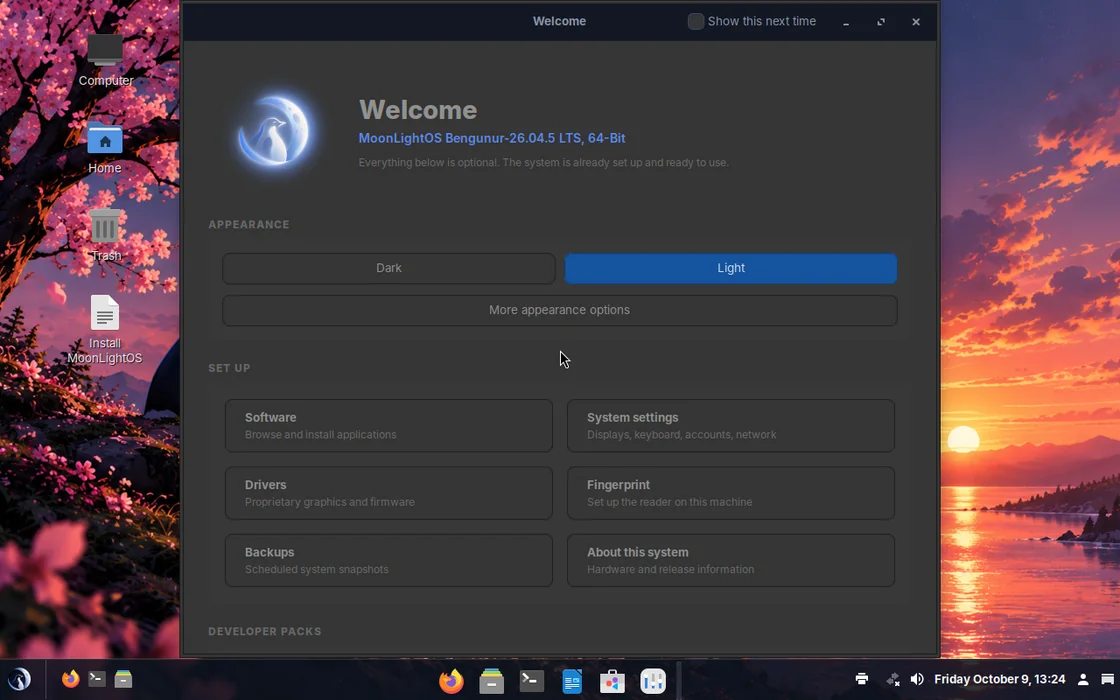
MoonLightOS is not an Ubuntu image with a different theme. It is built from scratch: every package on the image is there because it was chosen, and none of Ubuntu's own desktop is installed.
See all the features| Base | Ubuntu 26.04 LTS (“resolute”), minimal installation without the Ubuntu desktop |
|---|---|
| Desktop | Cinnamon, with themes generated from a single colour palette |
| Login screen | LightDM with Slick Greeter |
| Installer | Calamares, with optional full-disk encryption |
| Packages | apt, snap and Flatpak, all available in one store |
| Browser | Firefox from Mozilla's own repository, with uBlock Origin preinstalled |
| Office | LibreOffice: Writer, Calc, Impress and Draw |
| Thunderbird and Geary | |
| Editor | Visual Studio Code and a complete development toolchain |
| Support | Until April 2036 |
The Start button is on the left, next to a search box that finds applications, settings and files as you type, with a web search as the last result. Running applications are shown in the centre as a dock with large, grouped icons. The status area is on the right. The panel works the way people expect it to, whatever system they are used to.

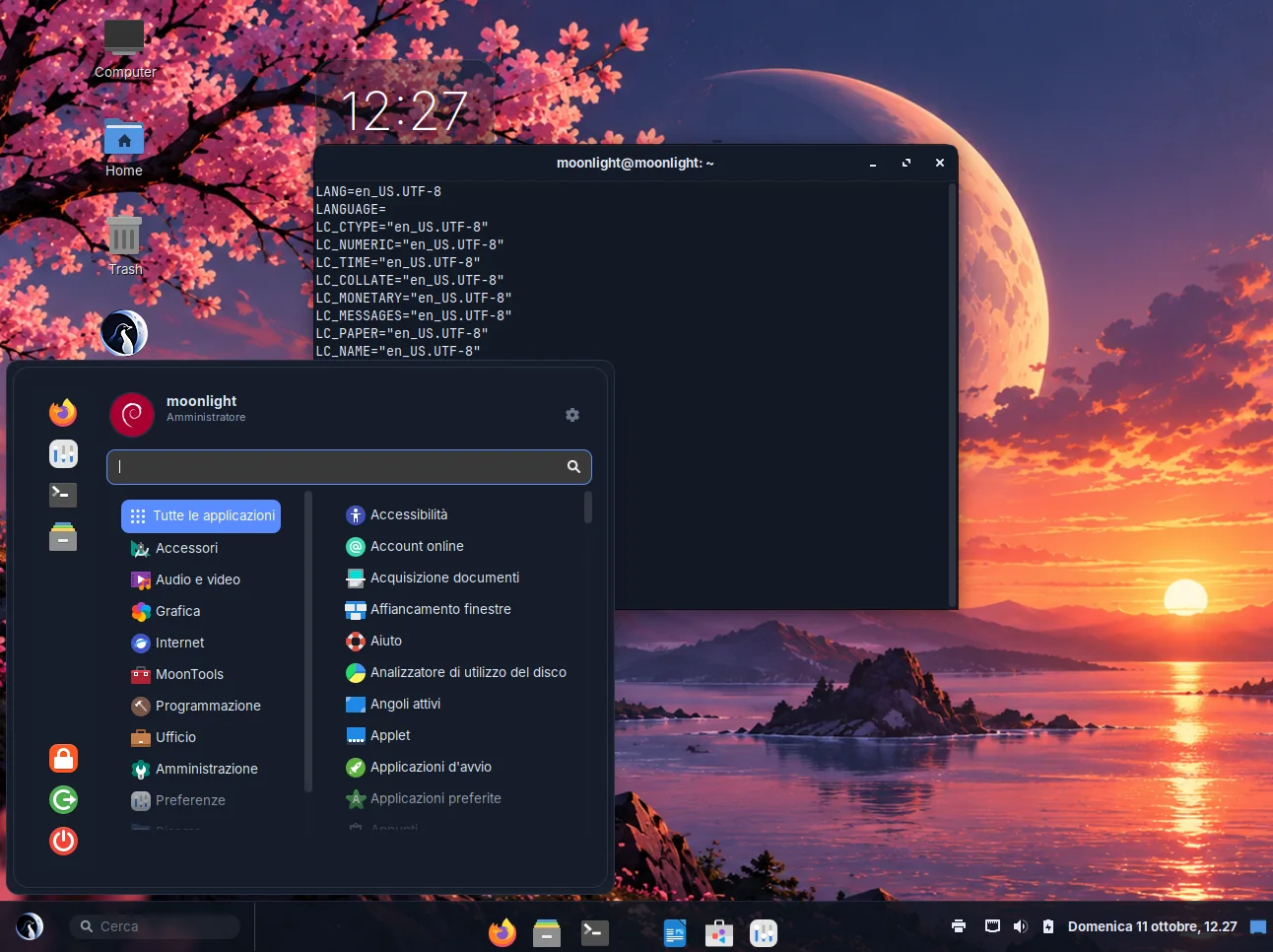
A single panel at the bottom. The dock also holds your favourite applications, so there is no second row of launchers.
A thin bar at the top for the clock and the status icons, and a dock at the bottom that hides automatically.
A single thin bar at the top. It takes the least screen space and is the lightest option on old graphics hardware.
The light and dark themes share the same design and differ only in colour. Both are generated from one source, so they always match. Switching changes GTK 3, GTK 4, the Cinnamon shell and the window borders together, and can follow a schedule.
Files, folders and application launchers can be placed on the desktop and stay there. A launcher dragged out of the menu is marked as trusted automatically, but only when the program it starts is installed in a system directory, so a launcher downloaded from the web still triggers the usual warning.
Everything people usually miss on their first day with Linux is already included. Moving from Windows or macOS means changing system, not changing habits.
The menu opens with the Super key, files and launchers can stay on the desktop, and the system tray is where it has always been.
Running applications are shown in the centre with large icons. The right-click menu offers Show all windows, Hide, Open at login and Quit.
Super+E, Super+L and Super+D work as usual, and so do Ctrl+Up, Super+Q and Shift+Super+4. There is nothing to unlearn.
Windows Apps configures Wine once, with DXVK, VKD3D, fonts and runtimes. After that, .exe files simply open.
Clipboard history with Super+V, screenshots and screen recording with Print, notes that are saved automatically, and a converter for almost any file.
Firefox, Thunderbird, LibreOffice, VLC and GIMP are preinstalled. Steam, Spotify and many others are one search away in the store.
Fourteen applications developed specifically for MoonLightOS, each covering a task that no existing tool handled well. All of them are available in the eight languages offered by the first-run wizard, in addition to English.
Screenshots and screen recordings from a single tool. Print, or Shift+Super+3, 4 and 5.

A searchable history of everything you have copied, stored as a plain file. Super+V.
Quick notes that are saved automatically, stored as plain Markdown files. Super+N.

Converts pictures, audio, video and documents between formats without having to know which tool to use. Super+Shift+C.

Rearranges pages from any number of files, then compresses, protects, recognises text, watermarks or numbers them on export.
Exports forty photos as JPEG, at most 2000 pixels wide, under 500 KB each and with the GPS data removed, in a single step.
Every protection listed here is already switched on. Nothing has to be configured first.
Canonical's signed shim, a signed GRUB and a signed kernel. No keys to enrol and nothing to switch off.
The installer offers LUKS2 encryption, with a themed passphrase prompt at startup.
The ufw firewall is enabled and blocks incoming connections. AppArmor runs in enforcing mode.
From Ubuntu's security repository and from Mozilla. Other updates wait for your approval, and the computer never restarts on its own.
There is no shared root password. Administrative actions go through sudo and are tied to a user.
Nothing reports back on how the computer is used: the crash and usage reporting services are not installed at all. Firefox telemetry and studies are turned off by policy.
The machine ID and the SSH host keys are generated on the installed computer and are never shipped in the image.
A second password that erases the disk's encryption keys or opens a decoy session. Disabled until you set it up.
2 GB of RAM is a supported configuration, not a theoretical minimum. The installer requires at least 1.7 GB, and the system is tuned to make good use of the memory it has.
Half of the RAM is used as a compressed swap area. Pages compress at roughly 3:1, so a 2 GB computer gains about 1.5 GB of usable memory without ever touching the disk.
Because that swap lives in RAM, swapping costs a memory copy rather than a disk access. The kernel is therefore set to use it readily, which is the opposite of the usual advice and the right choice here.
When only 4 % of memory is left, the largest consumer is stopped before the kernel's own mechanism can freeze the computer. The desktop session is protected; browsers and compilers are stopped first.
No background service scans the disk.
Tweaks → Performance turns all animations off. On a computer without 3D acceleration this happens automatically at login.
Office suite, e-mail, media players with the codecs they need, graphics tools, backups, and a terminal with the utilities people usually have to install afterwards.
Firefox with uBlock Origin, Thunderbird, Geary, Transmission
LibreOffice Writer, Calc, Impress and Draw, Evince, Xournal++, PDF Arranger, Calendar, Clocks, Weather, Maps, Calculator
VLC, Celluloid and Rhythmbox, with H.264, H.265 and AAC decoding and hardware video decoding through VA-API
GIMP, Drawing, the Eye of GNOME image viewer, Simple Scan, a font viewer
GNOME Software, System Monitor, Disks, GParted, Disk Usage Analyzer, Timeshift backups, Redshift, File Roller, Seahorse
Wine with DXVK and VKD3D, configured with one click by Windows Apps
The compiler toolchain, Git, Python, Node.js, Rust, Go, Java 21 with Maven and Gradle, Docker Engine with Compose and Visual Studio Code are preinstalled. The terminal comes with ripgrep, fd, jq, yq, tmux, Neovim, htop, btop, nmap, rsync, rclone, shellcheck and more.
QEMU/KVM and Virtual Machine Manager.
PHP, MariaDB and PostgreSQL.
A complete LaTeX toolchain.
./build.sh # bootstrap → customise → squash → ISOBuilt from scratch and checked at every step The build starts from a minimal base, installs exactly what the package lists specify, and then runs more than 120 mandatory checks, from the kernel and the signed shim to the bundled uBlock Origin extension and every translated string, before an ISO is produced. If a single check fails, no image is created. How the image is built
Download the image, write it to a USB stick and start your computer from it. The live session is the complete system, and installing it takes one click on the desktop icon.